 Where to Buy
WordPress plugin · Recommendations & affiliate links
Show people where to buy the things you recommend.
Where to Buy gives each thing you recommend a photo, a short description and a button for every store that sells it. Only links that work are shown, and the affiliate disclosure is added for you.
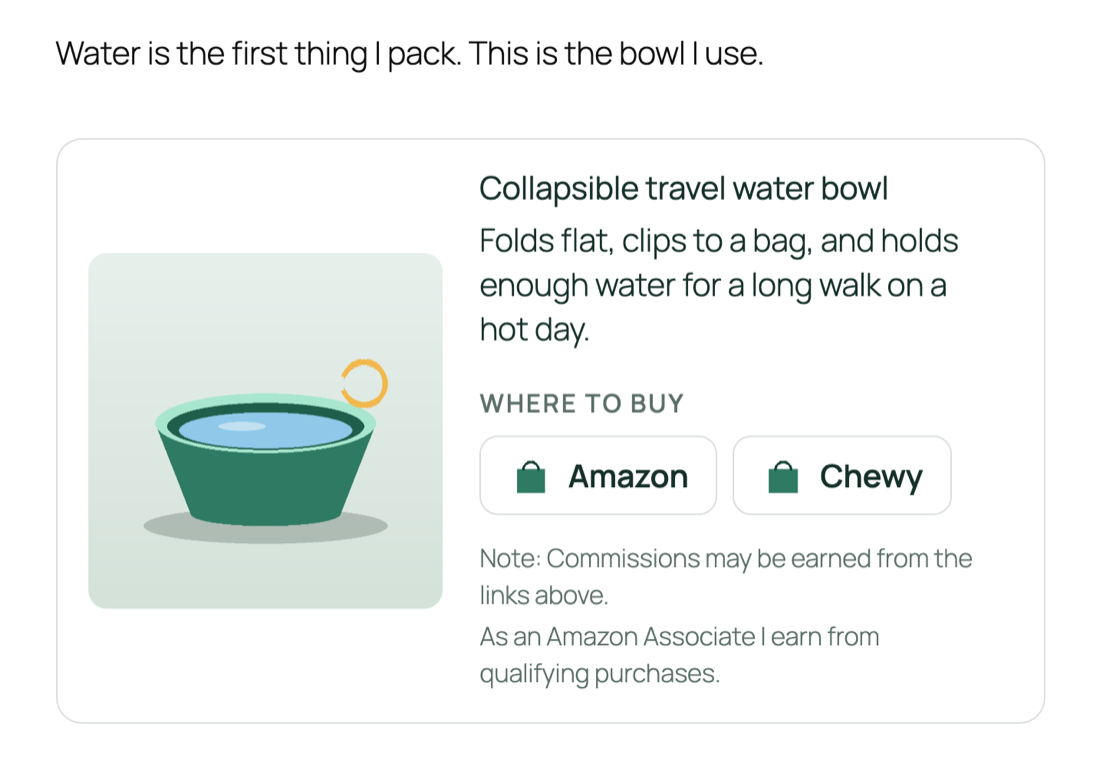
Everything a recommendation needs
Set your stores up once, then add a link per store to each item. The plugin handles the buttons, the checks and the fine print.
Stores, set up once
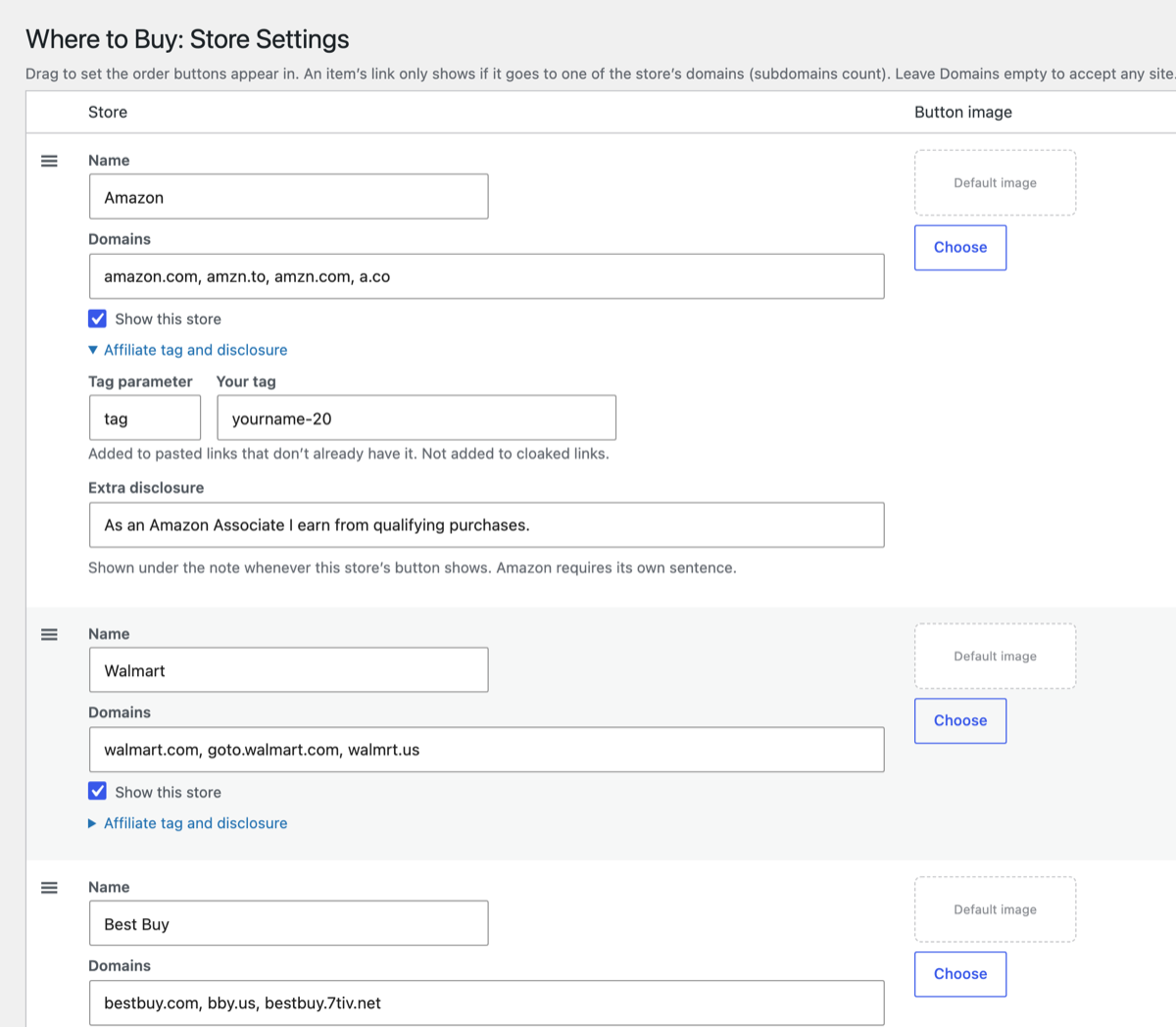
Name, button image, the domains its links go to, and the order buttons appear in. Turn a store off and its buttons disappear everywhere.
Only working links show
A link only shows if it's a full web address on that store's own site. The item editor says which links show and why the others don't.
Disclosures built in
Your note, such as "Commissions may be earned from the links above", shows right under the buttons. Amazon's required Associates sentence is added whenever an Amazon button shows.
Your affiliate tag, added for you
Save your tag once, for example Amazon's tag=yourname-20, and it's added to every plain product link you paste.
Place it anywhere
Each item gets its own page, there's a list page of everything, and the Where to Buy block or a shortcode puts an item inside any post.
Works with Affiliate Link Cloaker
Use a cloaked /go/ link for any store. Clicks are counted, and links to offers that have ended are hidden automatically.
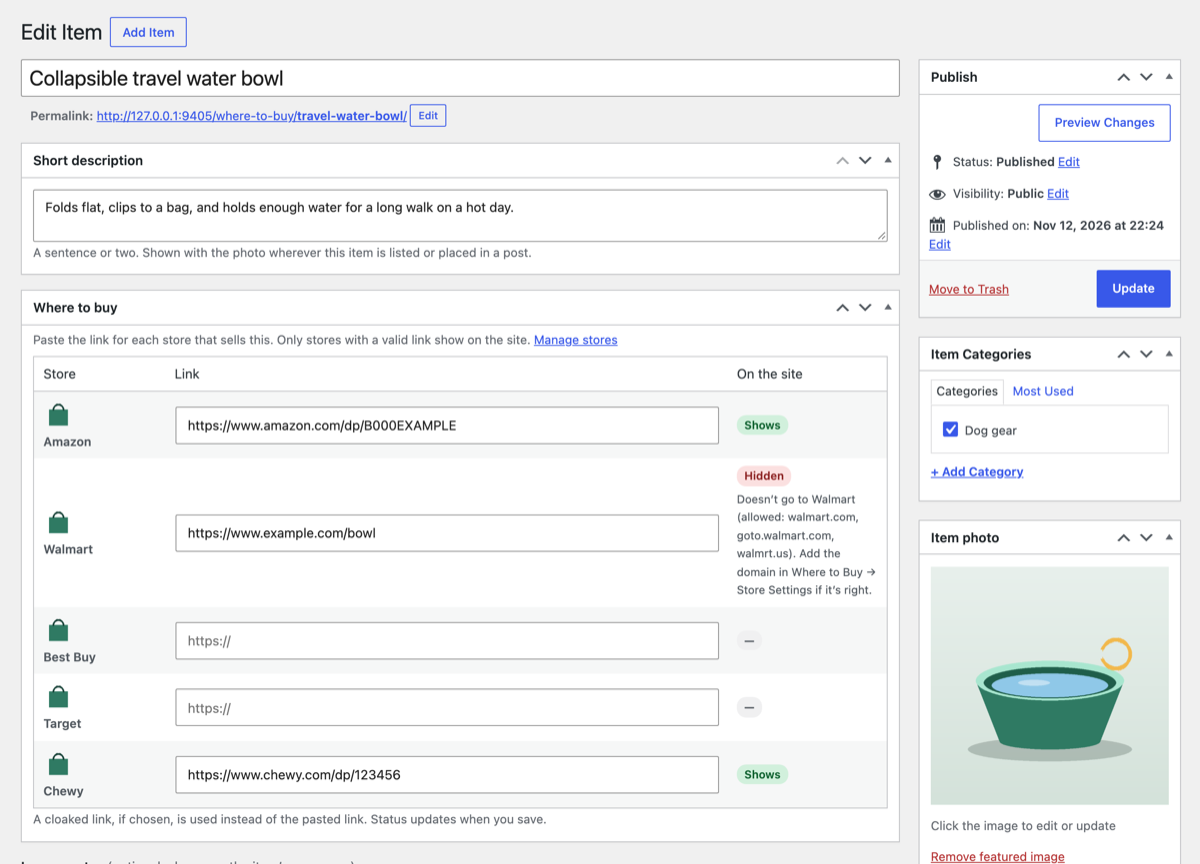
Add an item in one screen
- Name it and add a photo. Use your own photo of the item.
- Write a sentence or two. The short description shows wherever the item appears.
- Paste a link for each store. Each row says straight away whether it will show on your site.
Your stores, your order
Amazon, Walmart, Best Buy, Target and Chewy are set up to start with. Add any store you like, drag to reorder, and give each one a button image, or use one default image for them all. Stores without an image get a text button.
Get started
- Download where-to-buy-x.y.z.zip from the latest release.
- In WordPress, go to Plugins → Add New → Upload Plugin, choose the zip, then Activate.
- Follow the guide to set up your stores and add your first item.